Typesetting math and computer code
Characters that don’t appear on your keyboard
NotedELN supports most of unicode and—presumably—you can use any input method supported by Qt to enter text [1]. But the options for your operating system may not be that well documented. Therefore, NotedELN tries to make it easy for you.
Automatic character substitutions
The following substitutions are made automatically as you type:
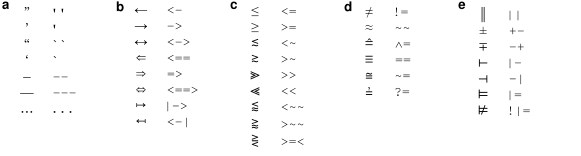
To get one of the glyph on the left, type the character sequence to its right. (See Typesetting computer code for how to prevent these substitutions if they get in your way.)
TeX-like substitutions
In addition to the automatic substitutions, there are many symbols that can be obtained by typing a backslash followed by their name:
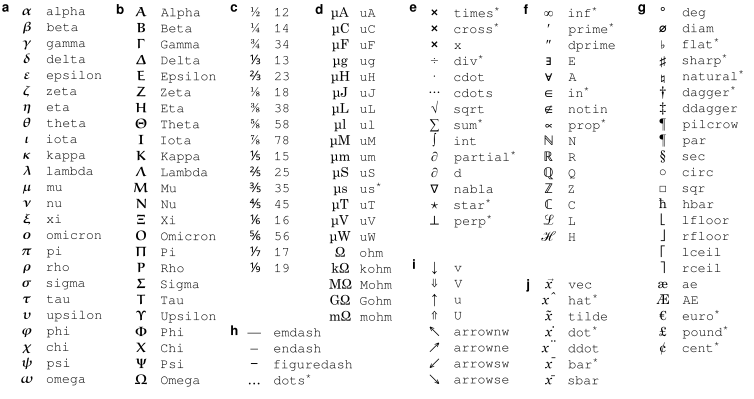
To get one of the symbols on the left, type a backslash followed by the character sequence to its right, then keep typing. (The accents (j) differ from the other codes, in that the accent is placed over the preceding character rather than as a separate entity.)
Extending this list is easy, so let me know if you have suggestions.
Accented letters
As an alternative to standard unicode input methods for entering accented letters, NotedELN supports creating a select group of accented letters by typing a backslash followed by a symbol and a letter, as in “Se\˜norita” for “Señorita” or “gar\,con” for “garçon”. Here is the full list:
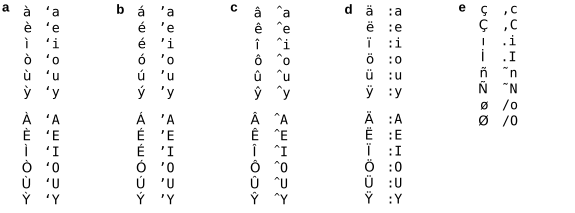
To get one the accented letters on the left, type a backslash followed by the character sequence to its right, then keep typing.
Typesetting equations
When typing mathematical equations, having to frequently type the
backslash for special characters and [Ctrl][/] for italics can get
tiresome. To avoid this annoyance, press [Ctrl][‘] (that’s the key to
the left of the [1] on many qwerty keyboards) to enter (and exit)
“math” mode, which turns the  icon into
  .
Math mode
can also be entered by double-clicking the icon or pressing
[Shift][F2].
.
Math mode
can also be entered by double-clicking the icon or pressing
[Shift][F2].
In math mode, single-character words are typeset in italics [2] and
special characters can be entered simply by typing their name. (The
single-character substitutions and those marked with * still require a
backslash, to avoid collisions with English words.) To typeset a
single-letter variable name in bold, bold italic, or roman, type its
letter multiple times. Also in math mode, simple subscripts and
superscripts can be typeset by just typing underscore or hat followed
by the text of the sub- or superscript. A space, or punctuation
followed by a space, ends the subscript or superscript. As a result,
an equation like  can be typeset simply by typing “int_1^inf
1/x^2 dx = 1” [3].
can be typeset simply by typing “int_1^inf
1/x^2 dx = 1” [3].
Even double superscripts and subscripts are possible, to the degree
that the second level is supported by unicode [4]. For instance,
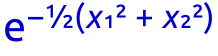 can be typeset simply by typing
“e^{-\12(x_1^2 + x_2^2)}”. (Note how the curly braces temporarily
“protect” the inner expression. In this case, you could have actually achieved the same without the braces, as the parentheses also protect their contents.)
can be typeset simply by typing
“e^{-\12(x_1^2 + x_2^2)}”. (Note how the curly braces temporarily
“protect” the inner expression. In this case, you could have actually achieved the same without the braces, as the parentheses also protect their contents.)
Typesetting computer code
When typing computer code, the automatic character substitions can be a
hindrance. To disable all automatic substitions, press [Ctrl][F2] (or
click the icon with [Ctrl] held). The icon will change to
 , which signifies “Code” mode. Press [F2] to return to
normal text mode.
, which signifies “Code” mode. Press [F2] to return to
normal text mode.